




Digital warden hides as system settings and refuses to leave your phone.
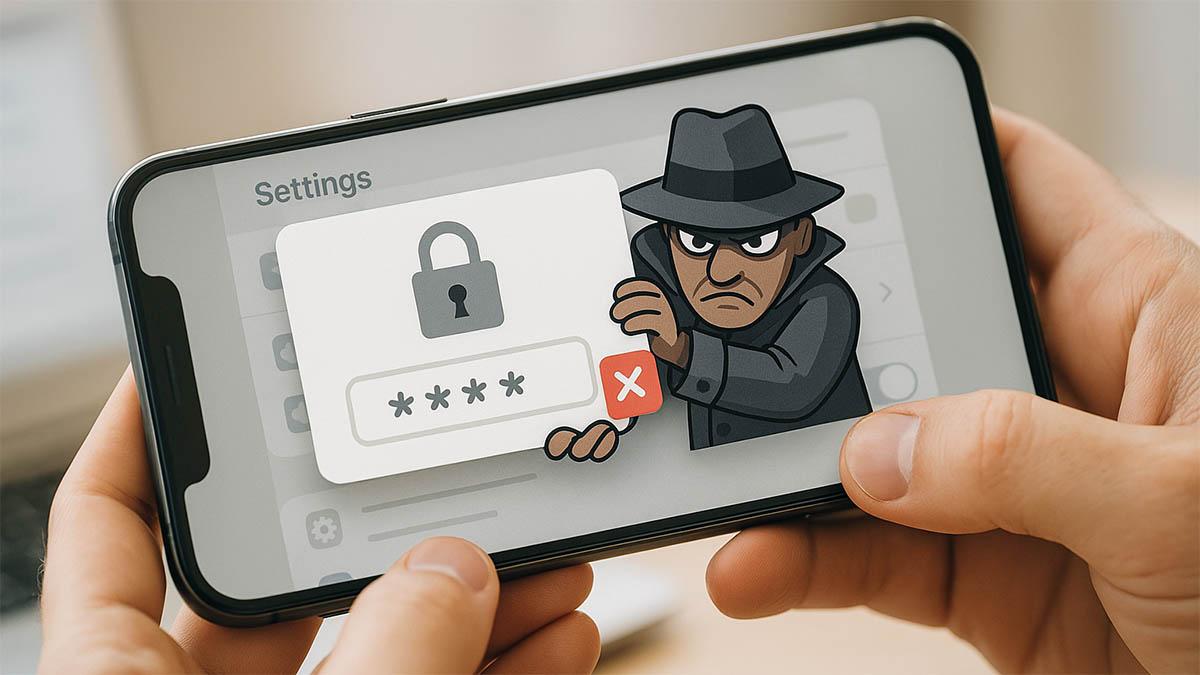
The spyware app—whose name remains undisclosed to avoid promotion—takes advantage of a built-in Android feature: drawing overlays on top of other apps. When a user tries to uninstall it via system settings, the spyware triggers a full-screen prompt requiring a password. That password is set by the person who originally installed the app.
The situation is worsened by the app’s ability to hide from the main home screen. It disguises itself as a standard settings item with a neutral icon, making it even more difficult to spot and identify.
These types of programs are often marketed as tools for parental control or employee monitoring. However, in practice, they are frequently used to spy on partners or spouses without their knowledge. Such behavior is illegal and falls under the classification of “stalkerware” or “spouseware.”
These apps are usually installed outside the official Google Play Store, requiring physical access to the device and knowledge of the phone’s unlock code. Once installed, the spyware hides itself and starts transmitting user data to a remote server — everything from messages and photos to real-time location. Control is managed via a web panel accessible only to the person who installed the app.
The only way to detect such an app is through the Android system settings, particularly in the Device Administrator permissions section. If you find an unknown or suspicious app listed as a device admin, it could be spyware. But trying to remove it the regular way leads to the password prompt again.
According to TechCrunch, the best solution is to boot the phone into Safe Mode. In Safe Mode, all third-party apps are temporarily disabled — including the spyware — allowing users to remove it without triggering the password screen.
To enter Safe Mode:
- Press and hold the Power button.
- Tap and hold the Power Off option.
- When prompted, confirm the reboot into Safe Mode.
- After restarting, you should see a “Safe Mode” watermark on the screen.
Next, go to:
- Settings → Security → Device Administrators
Disable the suspicious app’s admin rights.
Then:
- Settings → Apps → Installed Apps
Find the spyware and tap Uninstall.
Be aware that these actions will likely alert the person who installed the app. So it's strongly recommended to have a safety plan in place before proceeding. After removal, you should immediately strengthen your phone’s security by setting a strong lock screen PIN or password and changing all relevant account credentials, especially your Google account.
So even if spyware is running silently and resisting removal, users still have a way out. The key is knowing where to look and how to act—step by step.
