




Burp Suite – JWT-Based Web Application Scanning
Tutorial

Hello, Habr! It's back to those who report missing security headers in your application—dynamic analysis engineers. In our last article , we described a plugin for OWASP ZAP that simplifies JWT-based authentication. Now we'd like to tell you how to set up similar authentication magic in the popular tool Burp Suite Pro.
Content:
Burp Suite has many features. In addition to manual checks, the tool allows for automated scanning of web applications, with decent quality (number of detections and false positive rate). However, setting up a scan that requires application authentication can be challenging, especially if session support is provided via JWT tokens in headers. For example, ZAP easily allows this via the Authentication Helper add-on or scripts. But what about Burp? Various plugins for this tool help, to varying degrees, with setting up token-based session support. In this article, we'll describe three methods that will help you accomplish this:
- Macros + Target Scan (with manual crawling).
- ATOR + Scanner (crawling by scanner).
- ATOR + Target Scan (with manual crawling).
Macros + Target Scan
1. Collecting a sitemap
Burp Suite can automatically crawl applications, but in some cases, DAST scanners generally don't crawl modern websites well, meaning they don't crawl their pages. Therefore, it's sometimes better to crawl them manually. This is also necessary for the macro to work. Let's get practical. Open our application in Burp Suite's built-in Chromium browser (you can also do this from any other browser, but use Burp Suite as a proxy). Then, manually crawl it from the login screen to all the important functions and pages you'll need to attack. It's important to cover as much of the site as possible to collect as many URLs as possible, so the scanner can find as many vulnerabilities as possible.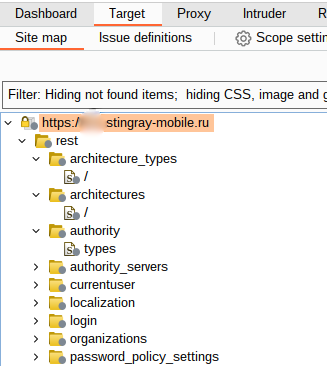
The assembled sitemap
2. Create a rule to obtain the required token (JWT)
The sitemap is now complete, so we can start creating macros. Go to Settings -> Sessions . Under Session handling rules , click Add to create a rule. A window will open where we need to name the rule. Let's call it "GET_JWT."
Let's name the rule
After that, click on the Scope tab and immediately select Include all URLs:
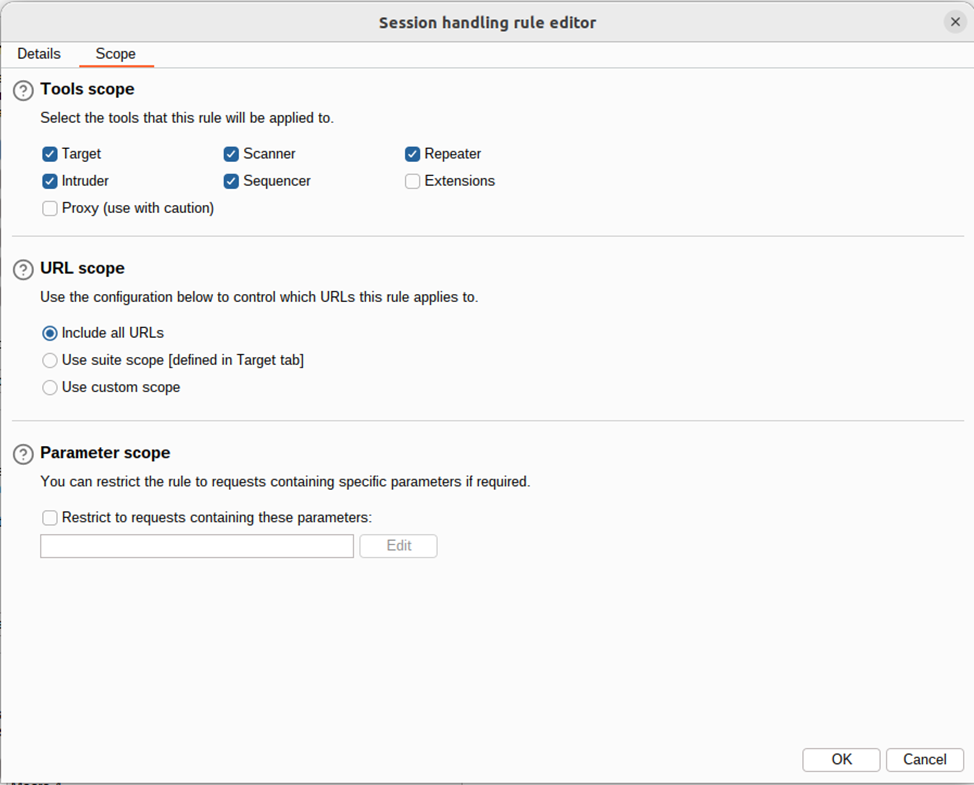
Setting the rule scope
Return to the Details tab and, under Rule Actions, click Add -> select Run a macro . A window will open. Click Add , then a list of completed requests will appear. Select the authorization request that received the JWT token in the response:

Selecting a query that returns a token
Next, click "Configure item" for the authorization request. A settings window will open, and at the bottom, select "Add ." Next, manually select from the response of this request the portion of the access JWT token that needs to be passed in the Authorization header for authorized requests to the application. Fill it out as shown in the screenshot:
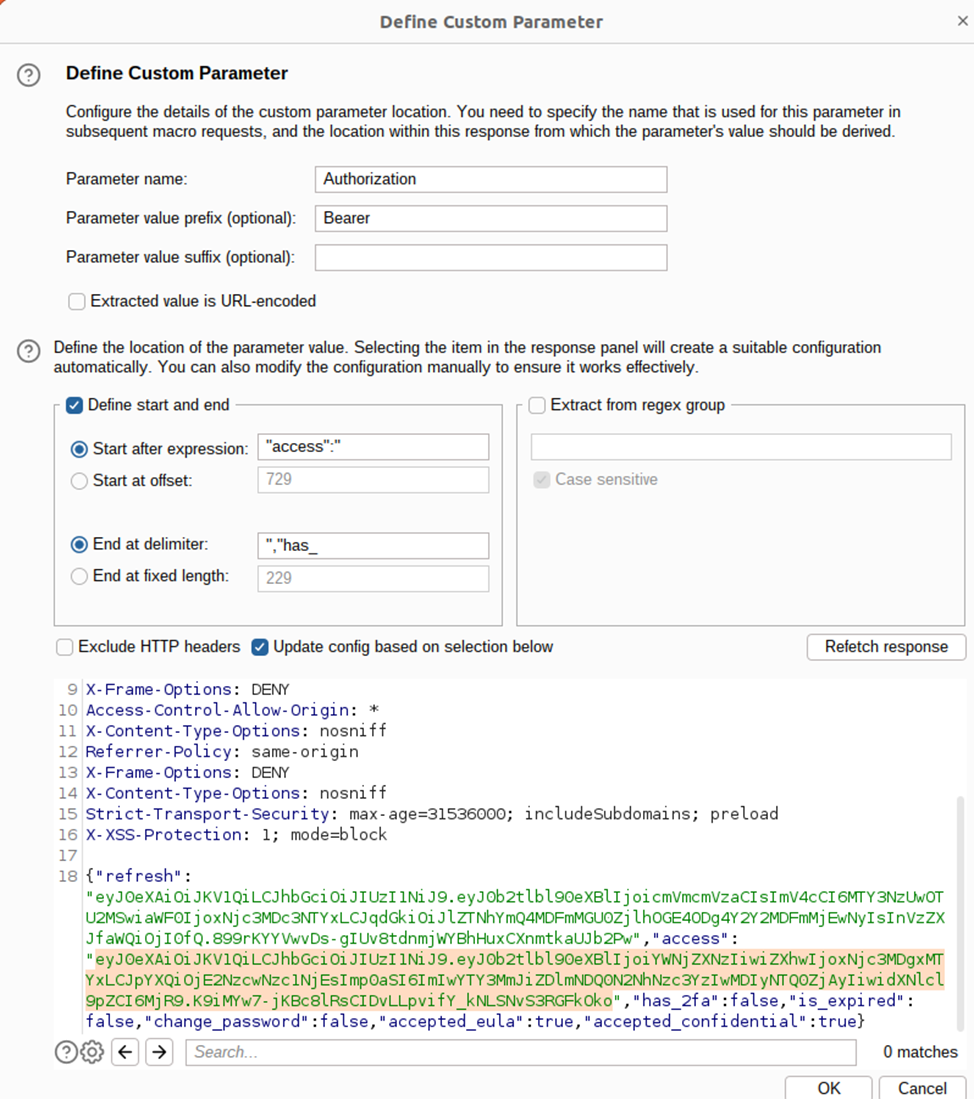
Defining a parameter for assigning a token
3. Creating a session validation rule
The JWT receiving rule has been created, now let's move on to session validation. Open Sessions again -> under Session handling rules , click Add -> give the rule a name, for example, "Validate" -> under Rule actions, click Add -> select "Check session is valid " -> check "Issue current request " to trigger the session validation check for every request . Fill in the fields below depending on your application; in our case, an invalid session returns a 401 response.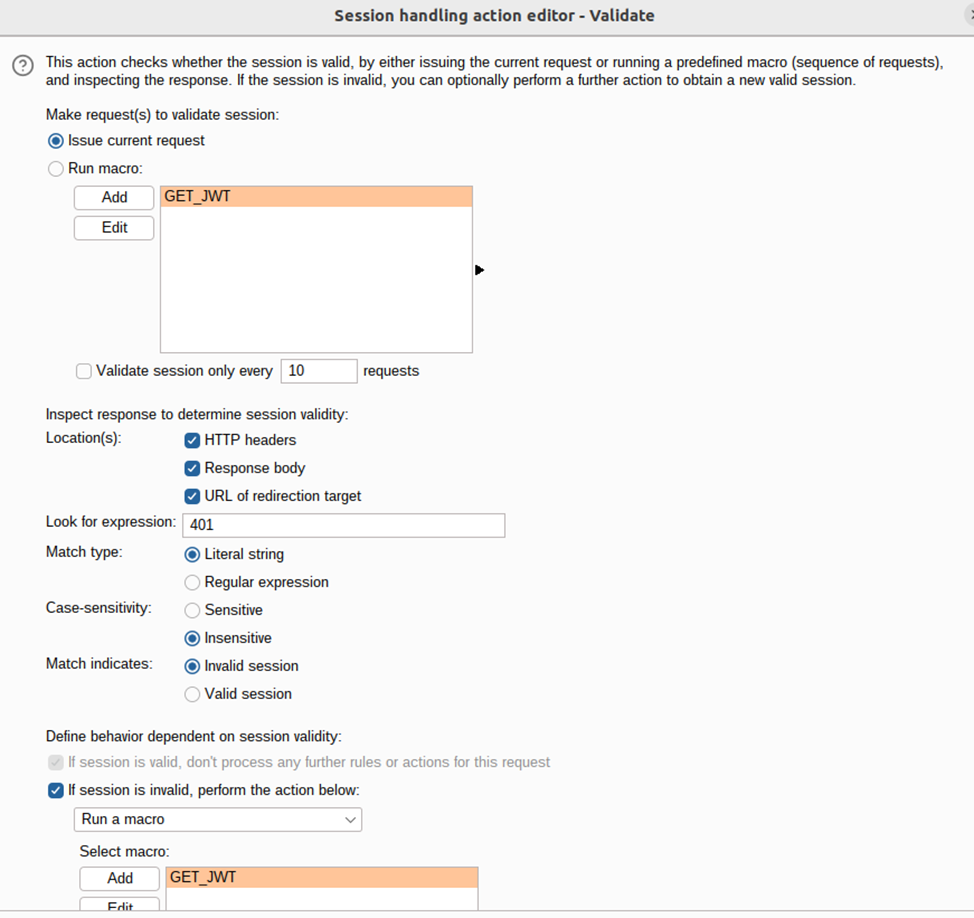
Setting up session validation
After setting up, click OK -> click the Scope tab -> select Include all URLs :
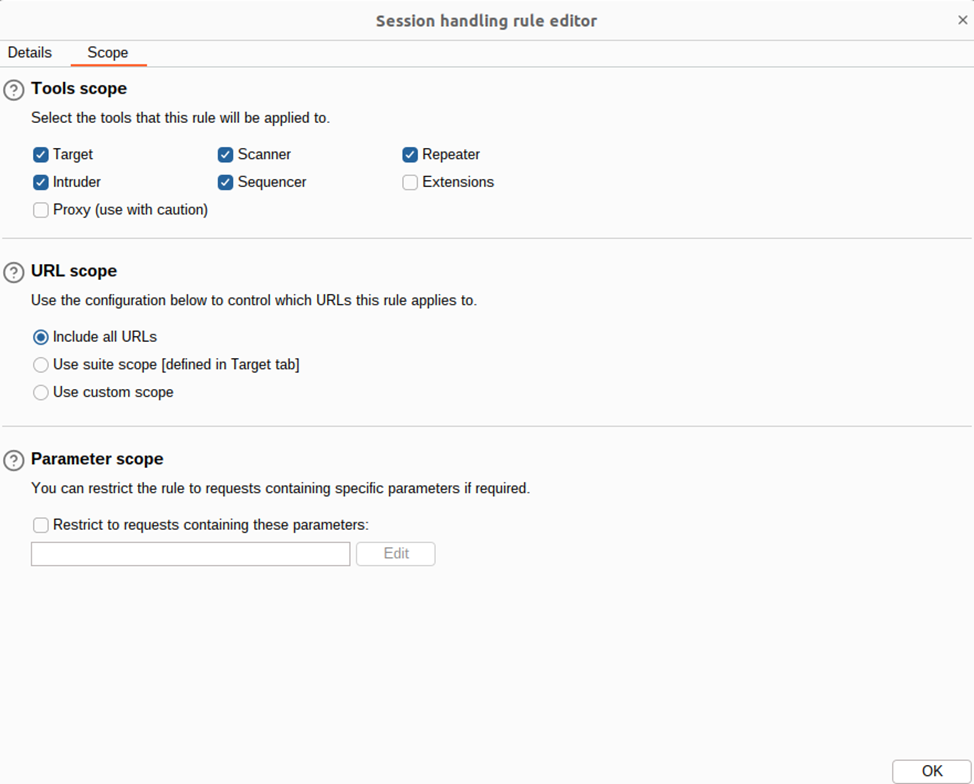
Setting the rule scope
Click OK .
4. Start scanning
Now all that's left is to launch the scan. Go to Target -> click Sitemap -> right-click the desired site -> select Scan -> click Open scan launcher :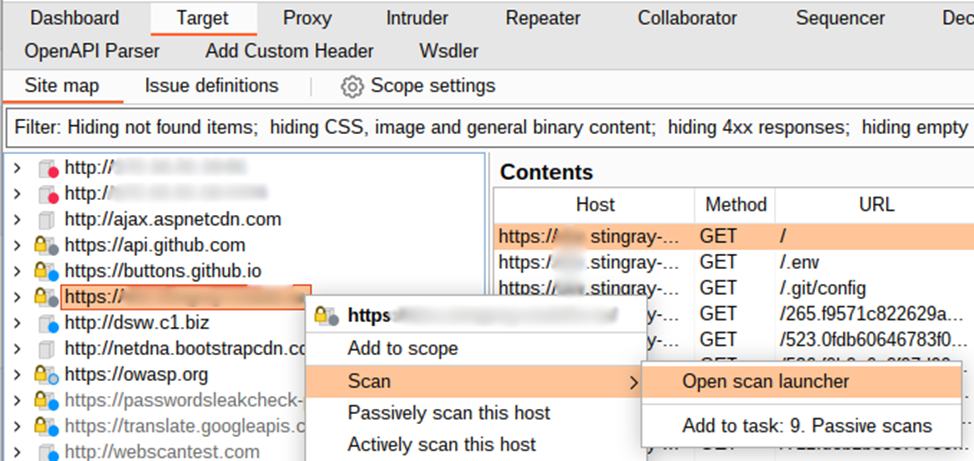
Starting a scan from the Target tab
The scan settings window will open. Select Audit selected items -> click OK :
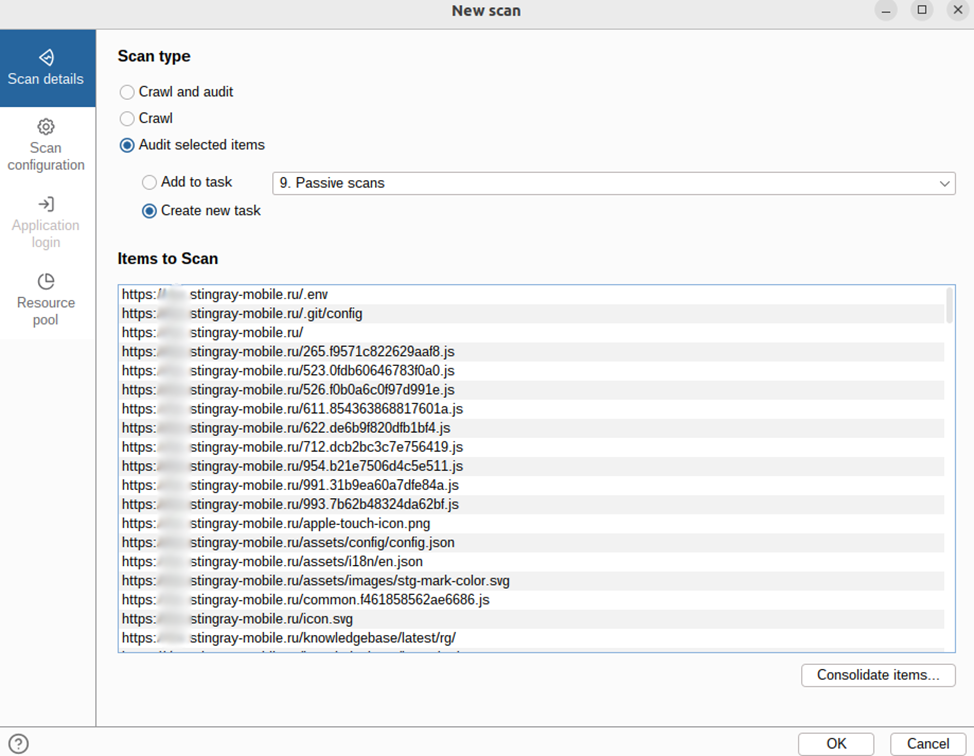
Start scanning
The URLs we manually crawled will begin scanning. Burp will generate a new JWT token and insert it into requests containing the Authorization: Bearer header .
Explanation of Macros + Target Scan
Let's run through the steps and see what we've accomplished. First, we manually logged into our application using Burp Suite's built-in browser and navigated through it completely, ensuring all the necessary links and paths were added to the Sitemap and that the " Authorization: Bearer " header, the value of which the macro would update, was already present in the requests. Next, we created a rule that identifies the "Authorization: Bearer" value in the request . If such a value exists (and it does, since we've previously manually logged in to the browser, and therefore all requests in the history have this header), Burp makes an authorization request and obtains an access token, substituting it into the Authorization: Bearer header <here> in the next request . Additionally, to determine the authorization status of the request, we created a session validation rule that, based on the application's response, determines whether the access token needs to be updated. We ended up running the scan through the Sitemap tab using Open scan launcher because the access token update rule doesn't work when run normally through Scanner. The reason is that Scanner requests don't have the Authorization: Bearer header by default —it's needed to "instruct" Burp to apply the macro we created.This was the difficult method. The other two methods are easier.
ATOR + Scanner
If your site is crawlable by Burp (for example, it doesn't have AJAX or other technologies), you can run a scan using Scanner in conjunction with the ATOR plugin. To configure it, install the plugin via Extensions -> BApp Store -> find the Authentication Token Obtain and Replace plugin -> click Install . It will appear in the toolbar: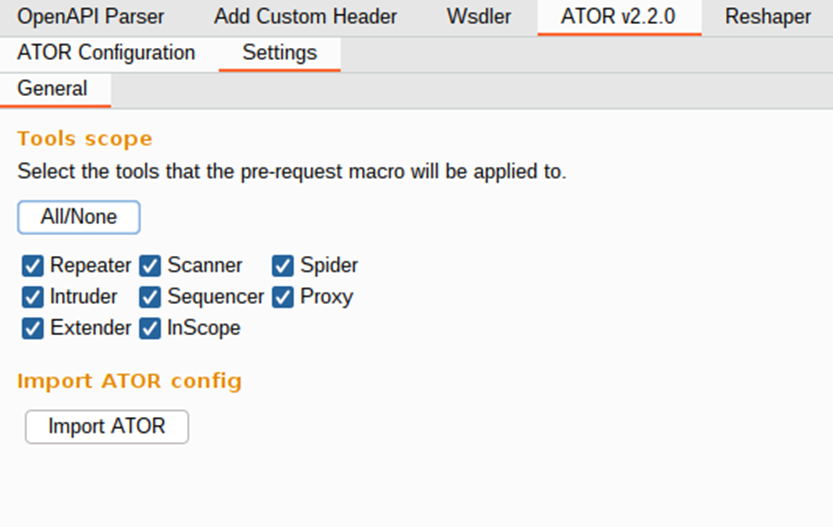
Selecting tools for ATOR application
You can select the checkboxes for the tools to which ATOR rules will apply. Next, go to your request history and find the one that returns a 401 error, indicating that the token is invalid:

Sending a request with an invalid session to ATOR
Now in the history we find the authorization request, which returns a JWT access token:
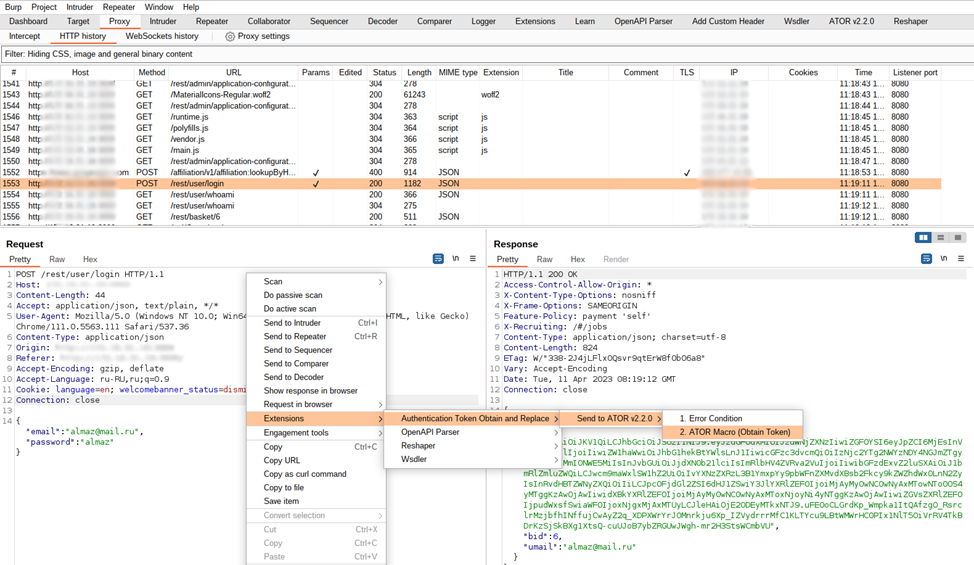
Sending a request to ATOR that returns an authorization token
Next, go to the ATOR tab -> open the “1. Error Condition” tab and on the right, create a condition for the Status Code indicating the 401 code:
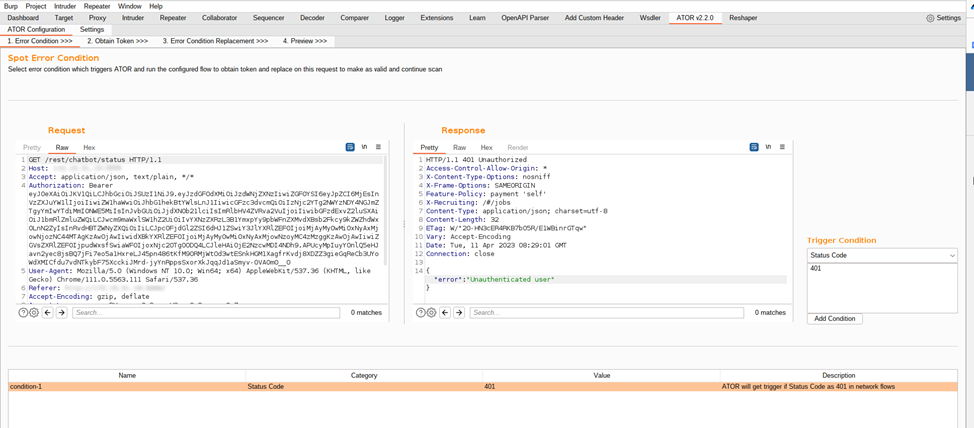
Error Condition tab
Go to the second tab, "2. Obtain Token ." In the right-hand Response window , select the access token that will be inserted into requests. Then, click the " From selection" button at the bottom . You can see how the fields are populated. Enter a name in the "Name" field . Then click "Add , " and the variable will appear in the Extraction List window :
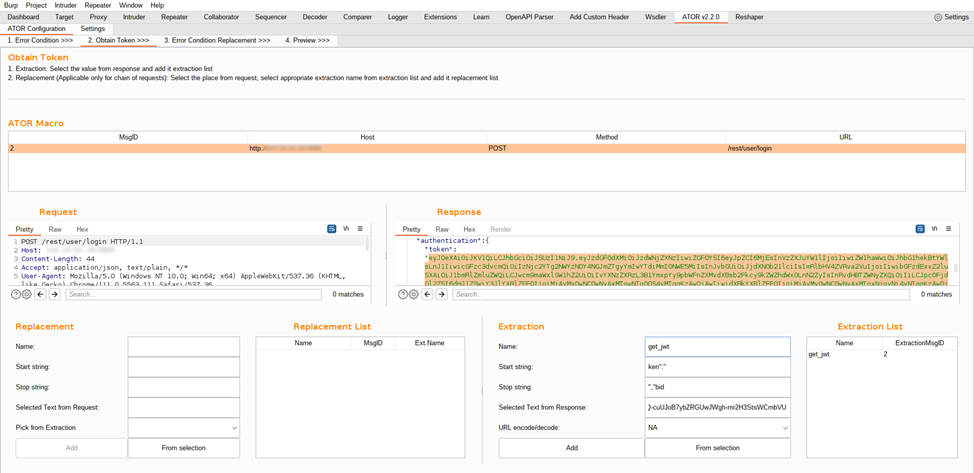
Obtain Token tab
Next, go to the next tab, "3. Error Condition Replacement ." In the Request window , select the JWT section that will be replaced with the token obtained from the previous tab. Also, click "From selection" on the right side of the window, enter a variable name, such as "new_token," and click Add .

Error Condition Replacement tab
And the final step is to test the result. In the "4. Preview" tab , click Test Run and observe: when a 401 response is returned , a request is sent to obtain a new token, which is inserted into the verification request:
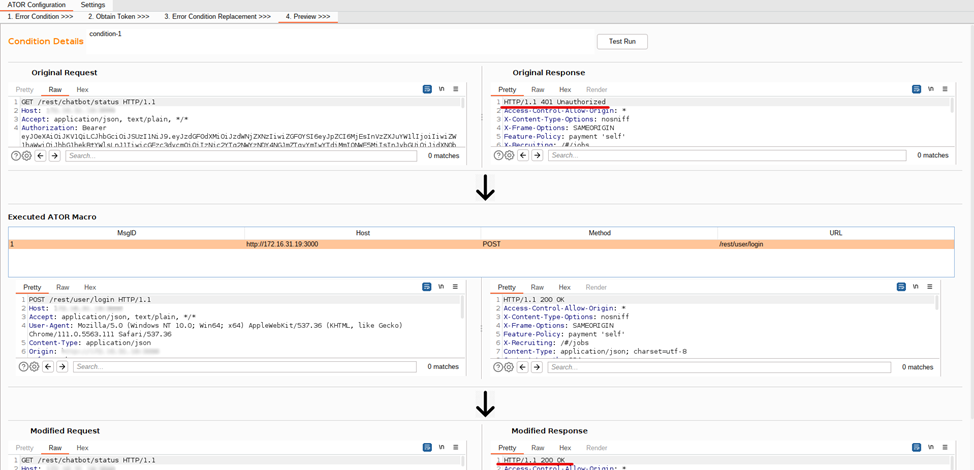
Preview tab
Now we can see that the new token is being inserted successfully. Next, let's apply this plugin to a real scan of our application. Go to the Dashboard tab -> click New Scan -> select Crawl and Audit . Below, enter the URL for testing. In the Scan configuration tab , select a scanning mode, such as Balanced . In the Application login tab , select the authorization type; in our case, it's Use recorded login sequences . This is a way to record authorization actions through the built-in browser using a special Burp Suite plugin. To create an authorization record, open the built-in browser via the Proxy -> Open browser tab . The Burp Suite extension will be there :
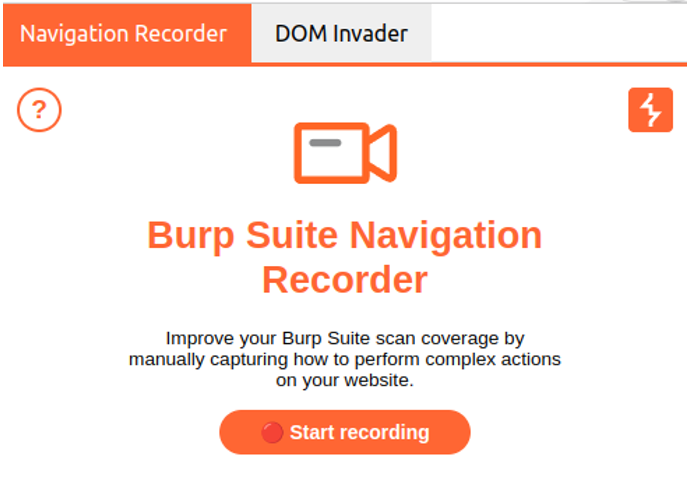
Burp Suite Extension
Go to the Navigation Recorder tab and click Start Recording . This will open an incognito window where you'll need to log in to the app. Click on the extension in the panel and click Stop Recording:
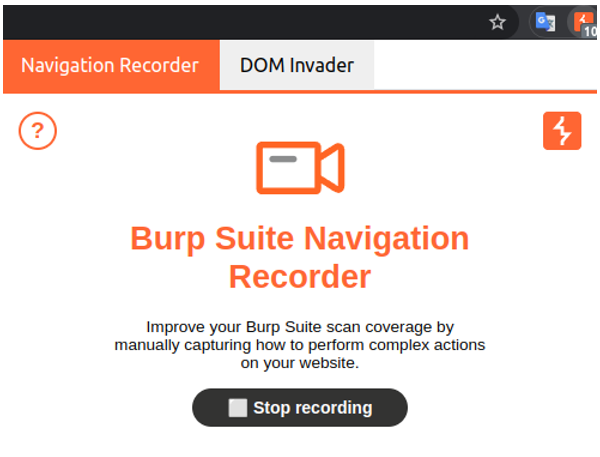
Stopping authorization recording
The incognito window will close automatically, and the recording script will appear in the built-in browser in the extension, from where you will need to copy it by clicking Copy to clipboard :
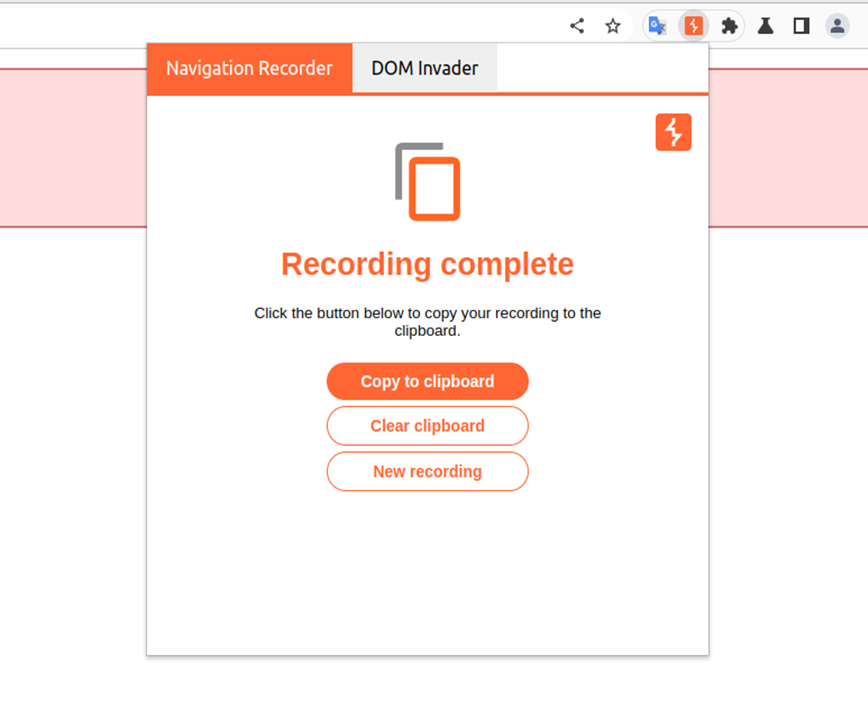
Copy recorded authorization button
After this, you need to click New in the scanning settings in the Application login tab , give it a name, paste this script and save:
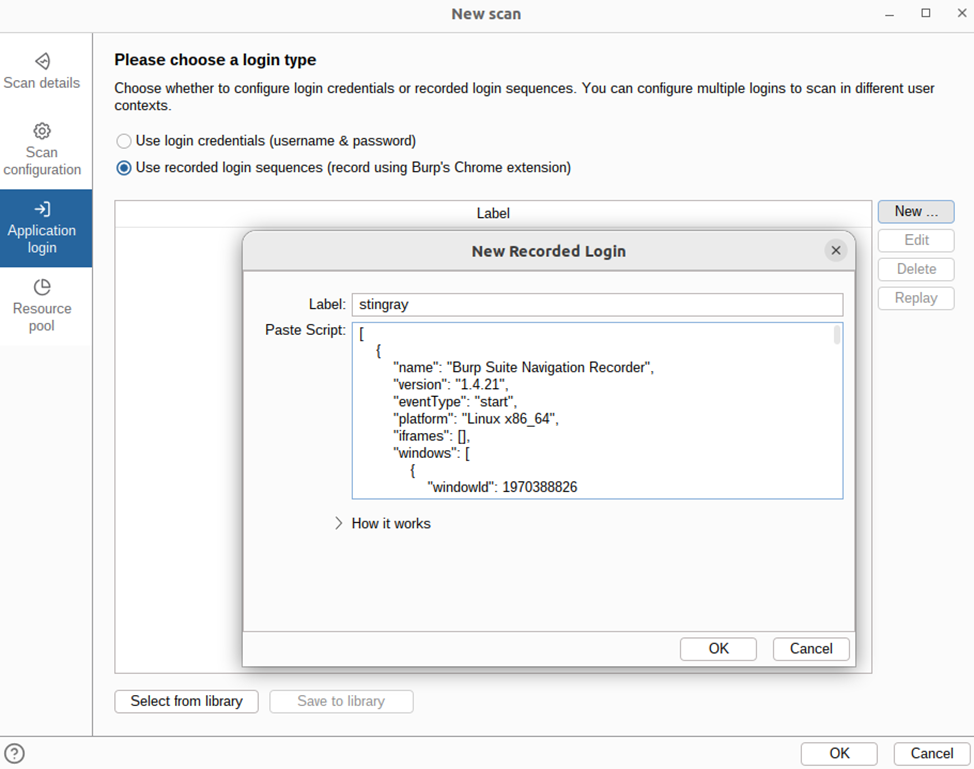
Inserting an Authorization Script into Burp Suite
After clicking OK, the scan will begin. In our case, because the application uses AJAX, Burp doesn't handle crawling very well (manual crawling produces much better results). However, the token was replaced:
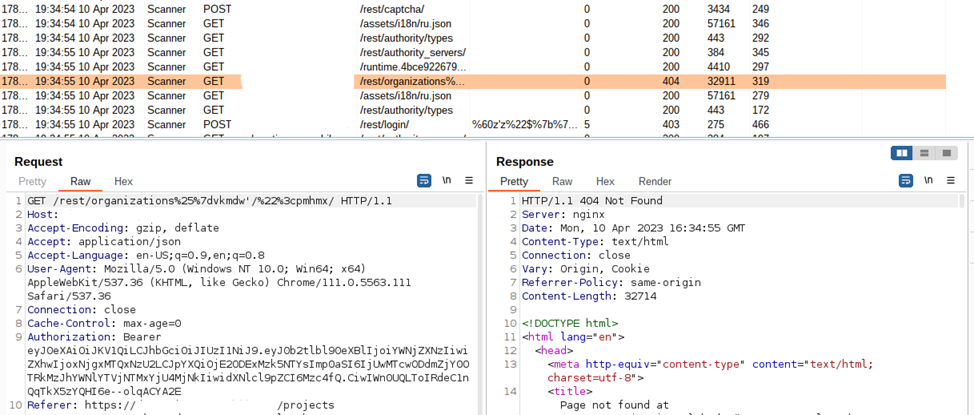
Replaced token in scan request
Thus, as an alternative to manual crawling, we can use Scanner in conjunction with the ATOR plugin to support sessions based on JWT tokens.
ATOR + Target Scan
The third option is to navigate manually, just like the first method, but use the ATOR plugin instead of macros. So, first, navigate the site manually:
The assembled sitemap
Next, configure ATOR as in the second method:
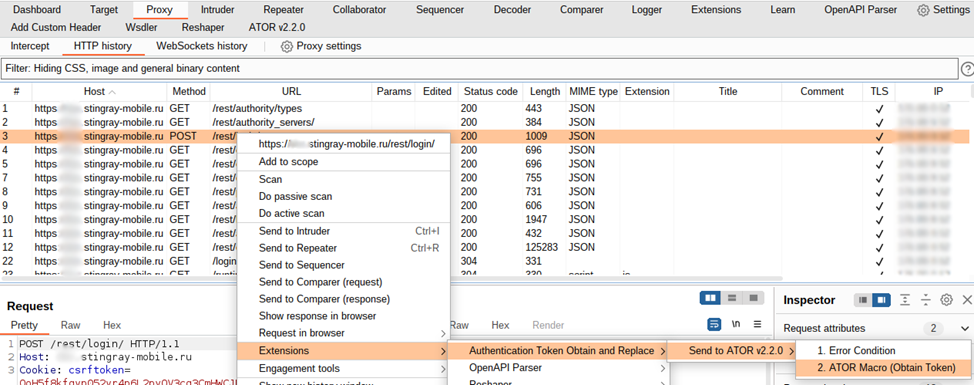
Sending a request to the ATOR plugin to obtain a JWT token
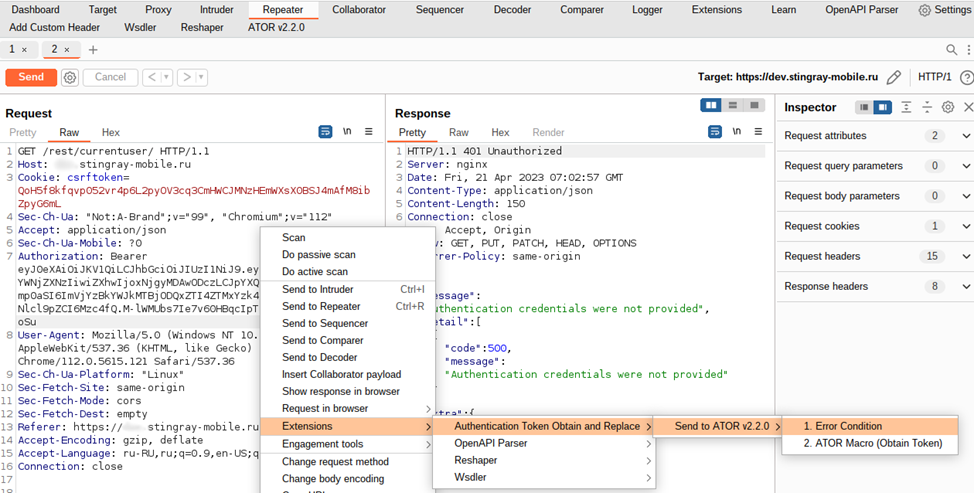
Sending a request to the ATOR plugin to receive a 401 error in response
The rest of ATOR's settings are similar to those in the second method. All that's left to do is launch a scan through the Target tab:
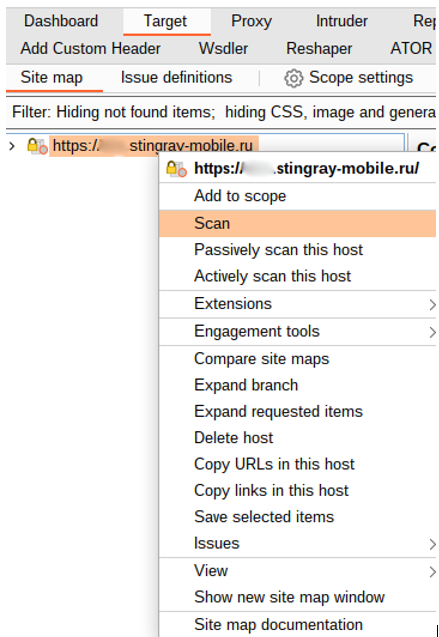
Selecting a crawled site and sending it to Scan
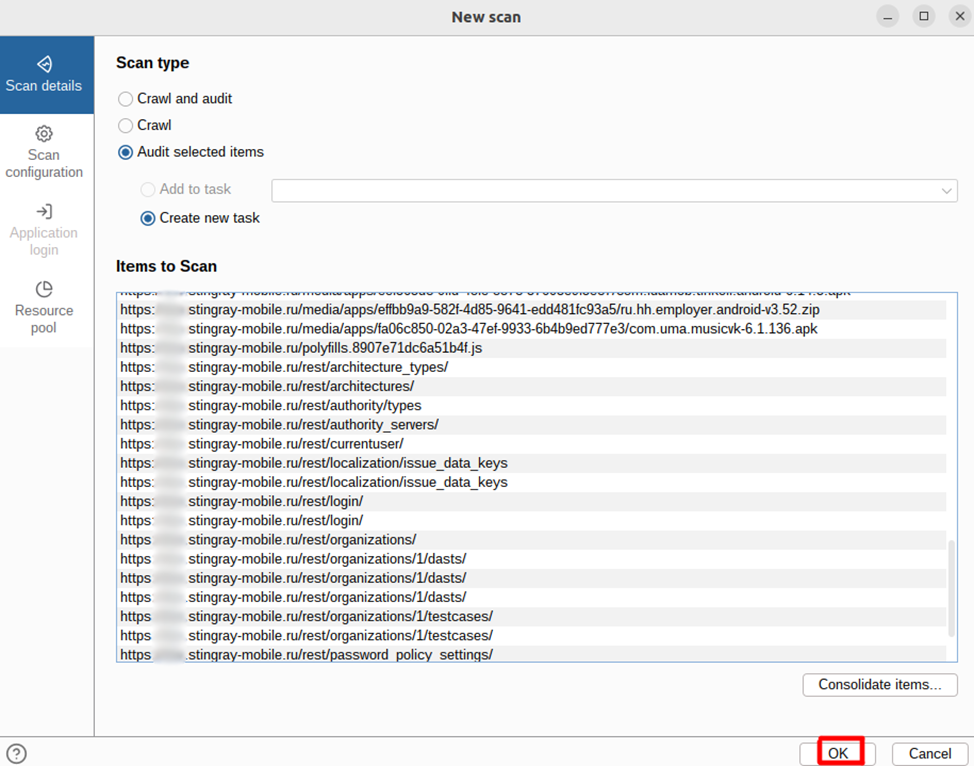
Start scanning
Conclusion
In this article, we examined three methods for header-based authorized scanning in Burp Suite. The first and third are most effective if the scanner's automatic crawling isn't handling your site well. The first method can be useful if you already have configured macros and are comfortable using them. The second is useful if the automatic crawling is finding content on your site well. For our example, the third scanning method is optimal. The ATOR plugin can import and export authorization settings, and with macros, the settings are saved with the session. In any case, we wanted to demonstrate the different methods for setting up authorized scanning in Burp Suite using the example of a site using JWT. We hope you find this article useful.Creators: Almaz Vakhit, Maria Kovtun.
Links:
https://portswigger.net/burp/documentation/desktop/settings/sessions/macros — about Burp Suite macros in the documentation.
https://github.com/synopsys-sig/ATOR-Burp — ATOR plugin on GitHub.


